









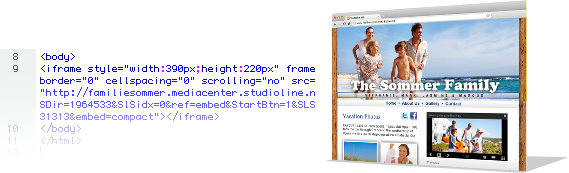
Copy the generated HTML code and paste it to a suitable location on your web page to treat your visitors to an attractive
slide show of your images. |
Use the Add-On » MediaCenter.PLUS to Present a Slide Show on Your Web
Page: |
Adding or removing images in » MediaCenter.PLUS dynamically updates the slide show - there is no need to modify or
republish your web page! |
You can change the order of your images anytime by
clicking an image with the left mouse button and dragging
it to the desired location. Descriptions and keywords can
be modified or inserted directly in MediaCenter. |
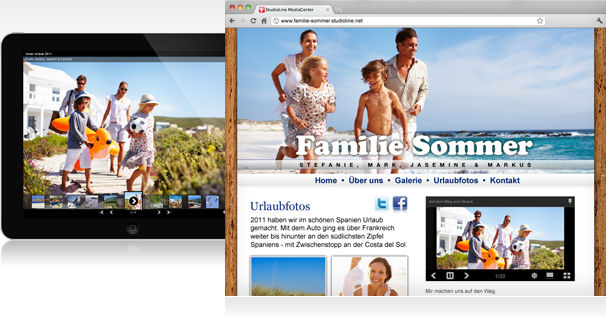

StudioLine Web users can select "Generate IFRAME code for use in StudioLine Web". Copy the resulting HTML code and
paste it into an HTML object in the StudioLine Web “Page Editor”. The slide show will display at the location and in the size
of the HTML object. |
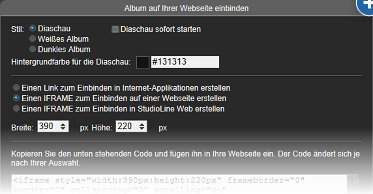
The slide show is compatible with all Internet-enabled devices, such as PCs, tablets, smartphones,
mobile phones or TVs. |


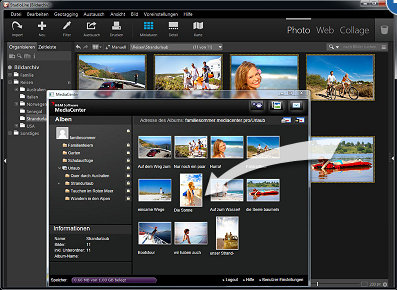

In MediaCenter, create a new folder for the slide show
by right-clicking the parent or root folder, and
selecting "New Folder." |